
Support · Getting Started
How to Setup your Foghorn
The Puckhead app walks you through setup in six quick steps. You'll pick your league and team, set your timezone and light color, and connect the Foghorn to your Wi-Fi. The whole thing takes about two minutes.
Before you start
- Plug in your Foghorn and wait about 30 seconds for it to power up.
- Have your Wi-Fi network name and password handy. The Foghorn uses 2.4GHz Wi-Fi — if your router broadcasts separate 2.4GHz and 5GHz networks, use the 2.4GHz one.
- Install the Puckhead app on your phone and turn Bluetooth on.


Open the app, tap Devices, and select your Foghorn from the list. Once it connects, the Setup Wizard appears.
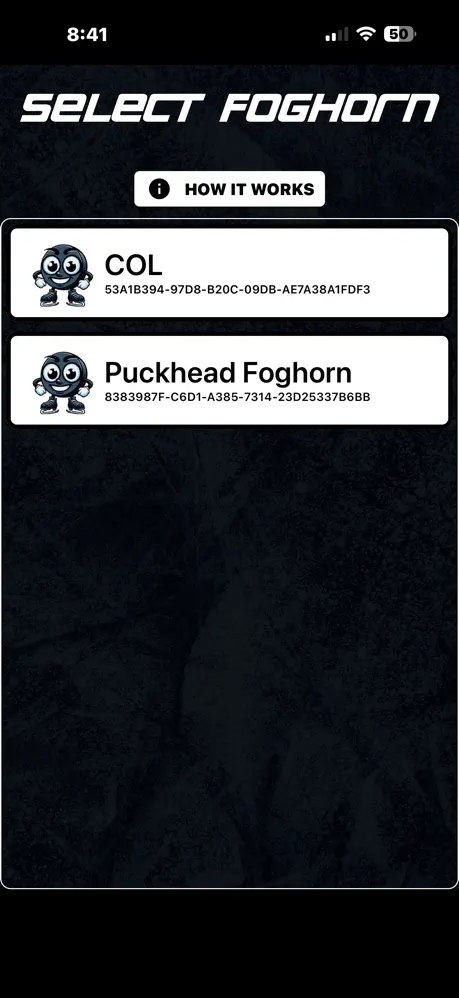
Tap Get Started.
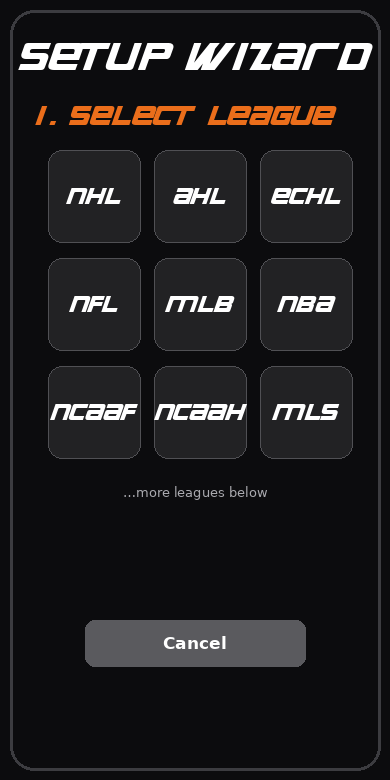
Step 1 — Select your league
Pick the league you want your Foghorn to follow. Scroll down to see everything — hockey, football, baseball, basketball, soccer, and more.
Step 2 — Select your team
Choose your team from the list. This is the team your Foghorn celebrates: goal horns when they score, and (depending on your sound files) win songs and start-of-game songs.
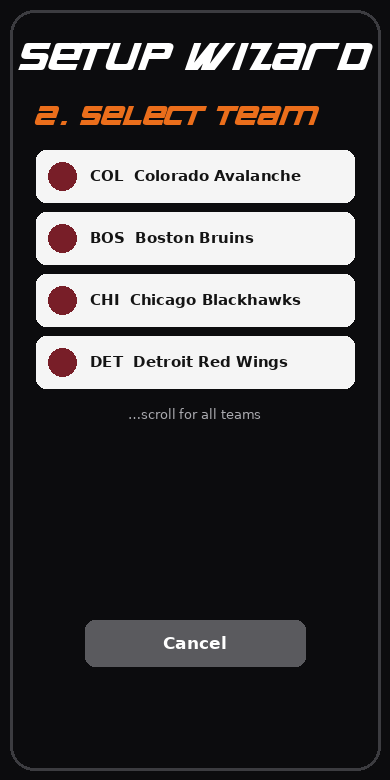
You can change your league or team any time later from the app — no need to redo setup.
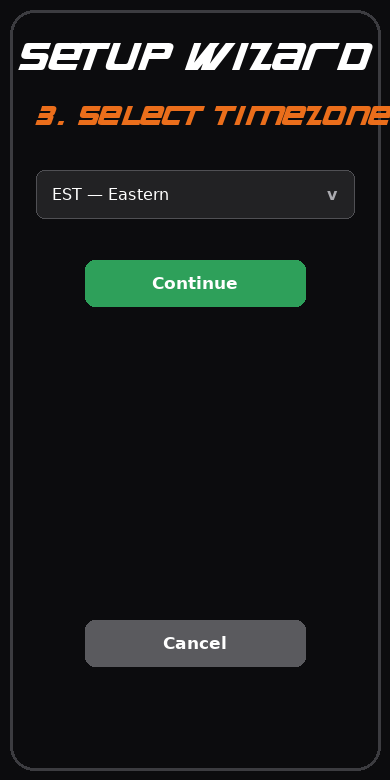
Step 3 — Select your timezone
Pick your timezone from the dropdown and tap Continue. This keeps game times and "games today" accurate for where you live.
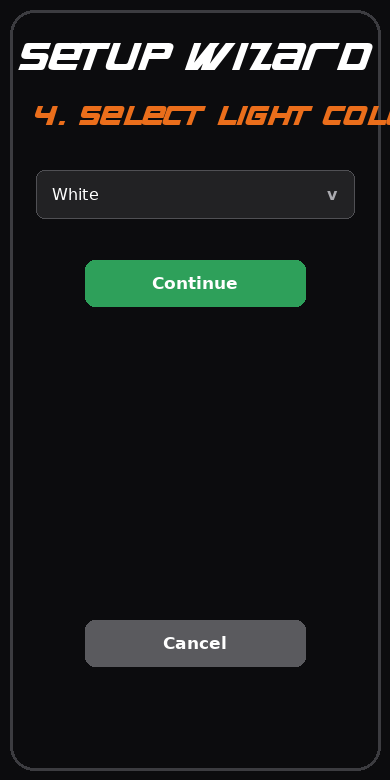
Step 4 — Select your light color
Choose the color the Foghorn's light shows, then tap Continue. You can fine-tune light behavior later in the device settings.
Step 5 — Connect to Wi-Fi
This is the step that brings your Foghorn to life — it needs Wi-Fi to follow live scores.
- Tap Scan for Networks and pick your network from the list (or type the name in yourself).
- Enter your Wi-Fi password.
- Tap Save & Connect.
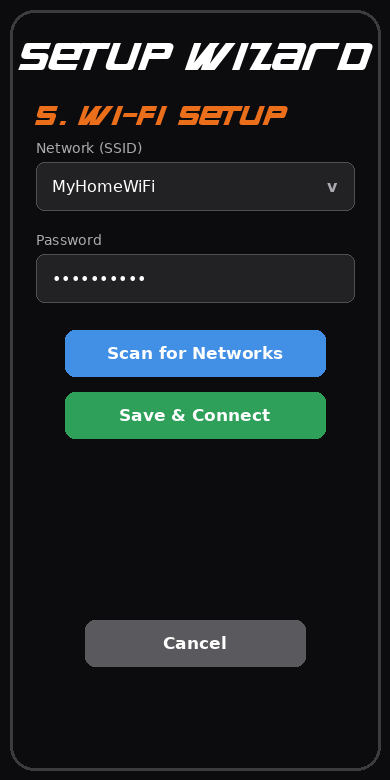
Both the network name and password are required. Remember: 2.4GHz networks only.
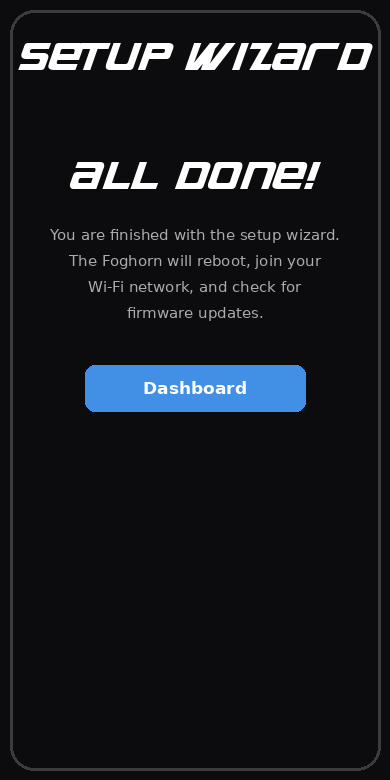
Step 6 — Done!
That's it. The Foghorn will reboot, join your Wi-Fi, and check for firmware updates on its own — give it a minute or two. The app takes you to the Dashboard, where you can adjust volume, sounds, and lights.
Troubleshooting
The Foghorn doesn't show up in the Devices list. Make sure Bluetooth is on, the Foghorn is plugged in, and you're within a few feet of it. Unplug it for ten seconds and plug it back in, then scan again.
Wi-Fi won't connect. Double-check the password (they're case-sensitive), and confirm you picked a 2.4GHz network. If your router uses one name for both bands, the Foghorn will find the right one automatically.
It connected but nothing happens on game day. The Foghorn only celebrates while your team has a live game. Check the Dashboard to confirm your league and team are set, and that sounds are enabled.
Still stuck? Open a support ticket and we'll get you going.